Wednesday, January 30, 2019

See Something Phishy?

What is phishing

Phishing is a type of social engineering that is designed to trick the recipient into clicking on a malicious attachment or visiting a malicious website. Phishing is usually done through email, ads, or by sites that look similar to sites you already use. For example, someone who is phishing might send you an email that looks like it's from your bank so that you'll give them information about your bank account.

Phishing emails or sites might ask for:
  • Usernames and passwords, including password changes
  • Social Security numbers
  • Bank account numbers
  • PINs (Personal Identification Numbers)
  • Credit card numbers
  • Your mother’s maiden name
  • Your birthday
AAPS phishing
We have been seeing a multitude of phishing attempts here at AAPS.  The latest is someone sending emails that look like they are from building principals.  They use the username of the principal but it is from the wrong domain, username.a2schools@gmail.com. All AAPS emails will come from either @aaps.k12.mi.us or @a2schools.org not @gmail.com.  The below is a screenshot of an email forwarded to me this morning. The email seems innocent enough to start but they eventually ask for money or iTunes gift cards if you respond.


Avoid phishing attacks

Be careful anytime you get an email from a site asking for personal information. If you get this type of email:
  1. Don’t click any links or provide personal information until you've confirmed the email is real.
  2. Report the email to Google:
    1. Open the message in a browser.
    2. Next to Reply , click the 3 dots for More.
    3. Click Report phishing.

When you get an email that looks suspicious, here are a few things to check for:
  • Check that the email address and the sender name match.
  • Check if the email is authenticated.
  • Hover over any links before you click on them. If the URL of the link doesn't match the description of the link, it might be leading you to a phishing site.
  • Check the message headers to make sure the "from" header isn't showing an incorrect name.

Phishing Quiz

Think you won’t fall for a phishing email.  Take this quiz that Google has put out.  It is surprisingly hard.  Good luck!

Source:


Remind App and Verizon

UPDATE: As of January 25, 2019 Verizon has backed down and said it will no longer charge Remind to use their texting services.  ITD has verified that texting is still working as of this posting.  

remind logo.png
Remind is a free app that some teachers or departments may use to communicate. It allows you to reach people across many platforms with one message. If you use Remind there is a big change coming that you need to be know about.  

What do I need to know?

Due to a new fee imposed by Verizon, Remind can no longer continue providing free text notifications for devices on the Verizon Wireless network. As a result, Verizon Wireless customers who use the free Remind service will not be able to receive or send text messages as of January 28, 2019.

How will this affect me?

If you use Verizon as your wireless carrier Remind recommends two things to continue to receive messages:
  • On your phone: Turn on smartphone notifications (RECOMMENDED)

  • On your computer: Turn on email notifications

What is ITD doing about it?

Ann Arbor Public Schools uses Verizon as its phone carrier. As such we are trying to use whatever leverage this gives us to try to convince Verizon to change their mind on imposing this fee on Remind.  

What can I do about it?

Verizon has backed down a little bit and said they will not impose the fee after all, but Remind is saying they have not gotten anything in writing so they are moving forward with the 1/28/19 shutoff.  If you communicate with Remind, please reach out to your group and warn them they may stop receiving messages if they use Verizon. If you only receive messages please follow the steps above to continue to get messages.  There is also a small movement of educators who have taken to social media to voice their concern. Feel free to reach out to Verizon and let them know that you’re asking them to #ReverseTheFee on Remind—and share how you’ve used Remind in your classroom and community, because your messages are #NotSpam.

Remind Twitter.jpg

Resources:


Thursday, January 17, 2019

NWEA Tips & Tricks

Pause, Suspend, or Terminate:


When should I pause the test vs Suspend the test? When I student is going to come back to the test in less than 20 minutes you can pause. When in doubt suspend the test, it is the same number of clicks. Never Terminate.
  • Drop Down List on Proctor Screen (underlined words are the choices in the drop down list)
  • Suspend - Test Again: (will use a lot)
    • When a test for a student(s) is suspended, lockdown browser or Chrome Browser must be closed/restarted (it’s like clearing the cache) for the Test Again option to work properly
  • Pause - Resume: (not used a lot, it’s for pausing 20 minutes or less)
  • Terminate: will stop a test but also make it not count and student will not be able to test again (Don’t use)
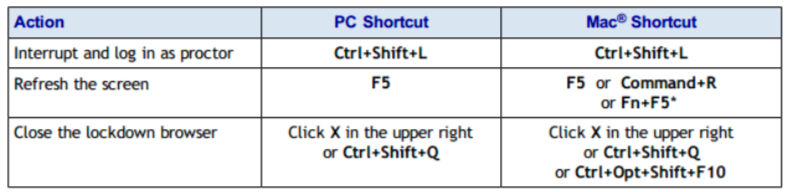
Lockdown Browser Shortcuts:


White Screen or Freezes:
Press Cmd+R to reload the page.
If the screen is still blank, please suspend the students test at the proctor station and restart the computer:

1. Select the check box next to students with white screen.
2. Select suspend on the action menu.
3. Click Go.
4. Reboot computer by holding the power for 30 seconds.
5. Have the student join the testing session and sign in
6. Restart the test (Test Again) from the proctor computer.
Misc Issues:
  • K-2 grade level questions will get items on screen read to them (a little speaker icon will appear)
  • If kid bumps to 3-5 grade level questions, during testing, no more reading will occur
  • Command-R won’t hurt anything it’s a good first step for resolving
NWEA Status Page:

If you ever have a question on if there is an issue with the NWEA site you can check the following site for the statue:


Tuesday, December 18, 2018

Web-based applications need distinct logins and logouts and periodic cache clearing

As a district we have moved to web-based tools that use a continuous WiFi or wired connection and an active web session to enter and save data (i.e. PowerTeacher, PowerSchool, STAGES, illuminateEd, Lexia, Seesaw). This is very different than a standard website that serves up static pages for you to read. When using a web app, the server to which you are connected is paying attention to the location from which you have connected and is monitoring that address for activity.

  • Always log out of web applications prior to closing the lid on your computer. This lets the servers know you have finished your session. WAIT until you see an acknowledgement that you are logged out before closing the lid.
  • If you have changed locations while (walked from one area of the building to another, say), quit any open browsers and log in again in order to establish a new session. When you move, you may disconnect from one wifi hub to another which can cause your web app session to drop.
  • It's a good idea to clear the cache on your browser once a month or so. Cached pages may retain old versions of app pages and result in funky display or unexpected errors. 

Tuesday, December 4, 2018

Gmail has a new look

You may have noticed that Gmail has a new look. Google let users change to this new look starting early this fall and have now made this look standard for all users. I know change can be hard but there are some nice features to take a look at:

Postpone or “snooze” emails to a future date or time that’s more convenient. Messages that you snooze will be put in the snooze folder and reappear in your inbox at the time you selected.

• Hover over messages in your inbox and click an icon to quickly archive, delete, mark as read or unread, or snooze messages.

• Quickly respond to emails using Smart Reply — phrases that appear as potential replies based on the message you received. Phrases will appear at the bottom of the email. Such as:
• Remind you to revisit old emails with a suggestion or “nudge” to reply or follow up.

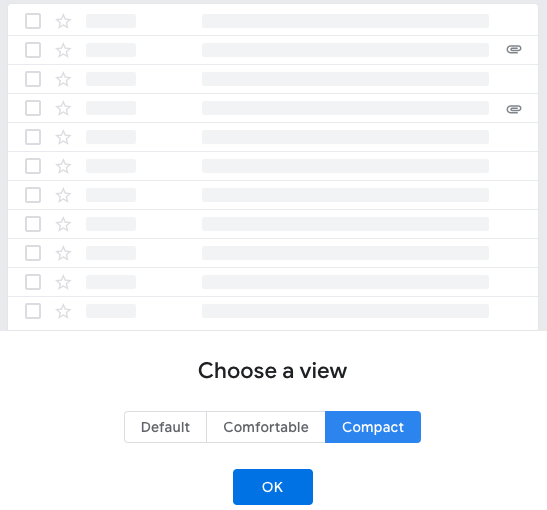
• Change how spacious or compact you want your inbox view. Go to the setting gear and select “Display Density.” There are three different options:


• Use Google Calendar, Keep, and Tasks while in Gmail. These will appear on the right hand side of the screen by default.

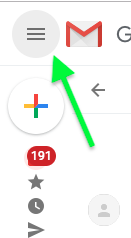
• Another “Feature” we have had calls about at the help desk is when Gmail’s new look tries to collapse the left hand side bar. This can be turned off by simply clicking the three lines in the upper left hand corner.